When you’re building a modern workspace, the goal isn’t just more pixels—it’s smarter workflow. The Gigabyte M27Q KVM stands out because it’s not just a monitor; it’s a control center. With a sharp QHD panel, high refresh rate, and a built-in KVM switch, it’s designed for people who juggle multiple devices without wanting cable chaos.
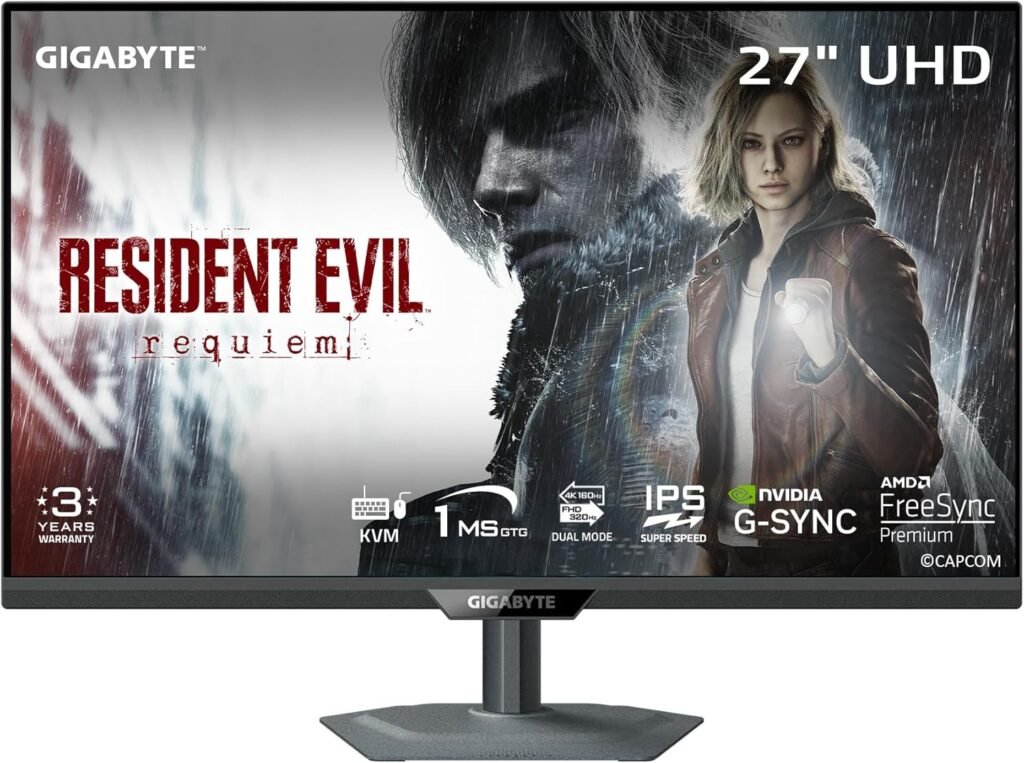
Table of Contents
The IPS Panel & Contrast Reality
Let’s be clear from the start: the Gigabyte M27Q KVM uses a standard IPS panel, not IPS Black like higher-end productivity monitors.
That means:
- Contrast sits around 1000:1
- Blacks are decent, but not deep
- In dark scenes, you’ll notice a slight greyish glow
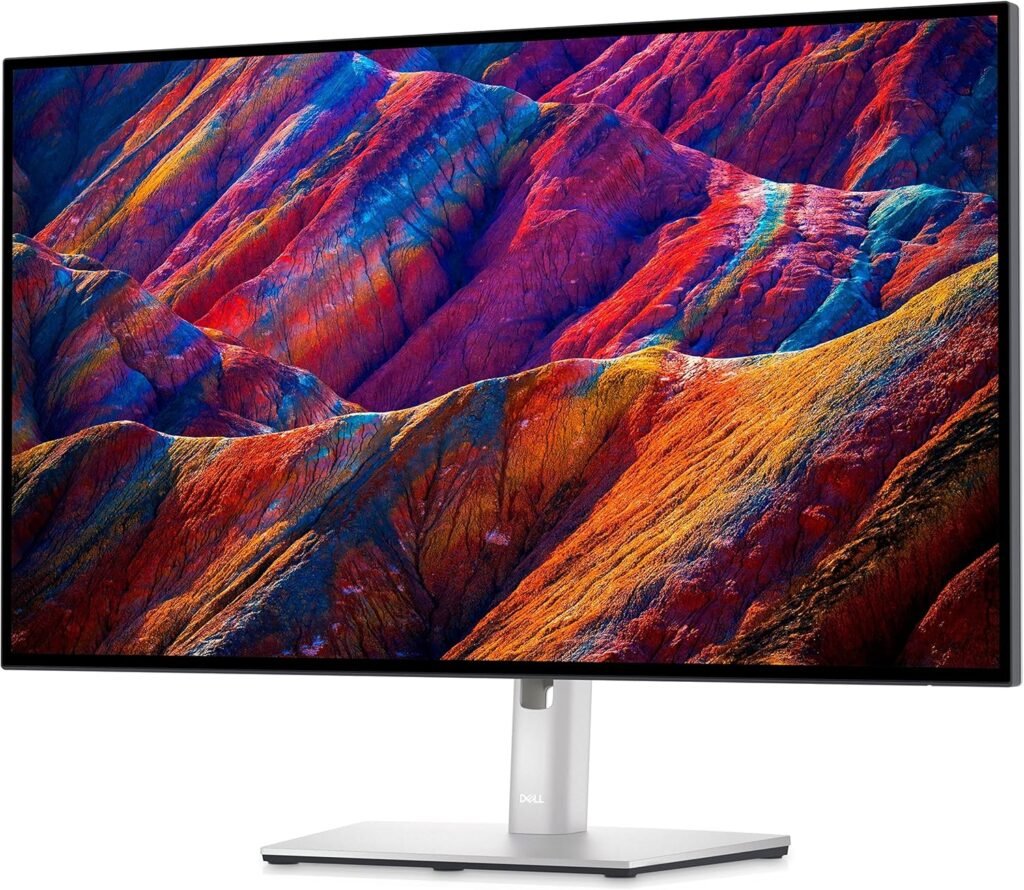
Compared to IPS Black panels (like Dell’s UltraSharp line), the difference is visible—especially in low-light environments. For photo editing, it’s good but not perfect. Colors are accurate enough for most creators, but shadow depth isn’t as strong as premium panels.
Still, for its price range, the color performance is solid. You get good sRGB coverage and a clean, vibrant image that works well for both work and casual content creation.
Design & The KVM + USB-C Hub Experience
This is where the M27Q becomes special.
The built-in Gigabyte M27Q KVM switch allows you to control two devices (like a laptop and a desktop) with one keyboard and mouse. With a single button, you switch everything—display, USB devices, and inputs.
Combined with USB-C, you get:
- Display output
- Data transfer
- Basic charging (lower wattage than premium monitors)
This creates a surprisingly clean setup. One desk, one keyboard, one mouse—multiple systems.
If you’re aiming for a clean and efficient workspace, this fits perfectly with setups like the ones in our Best Desk Setup Ideas.
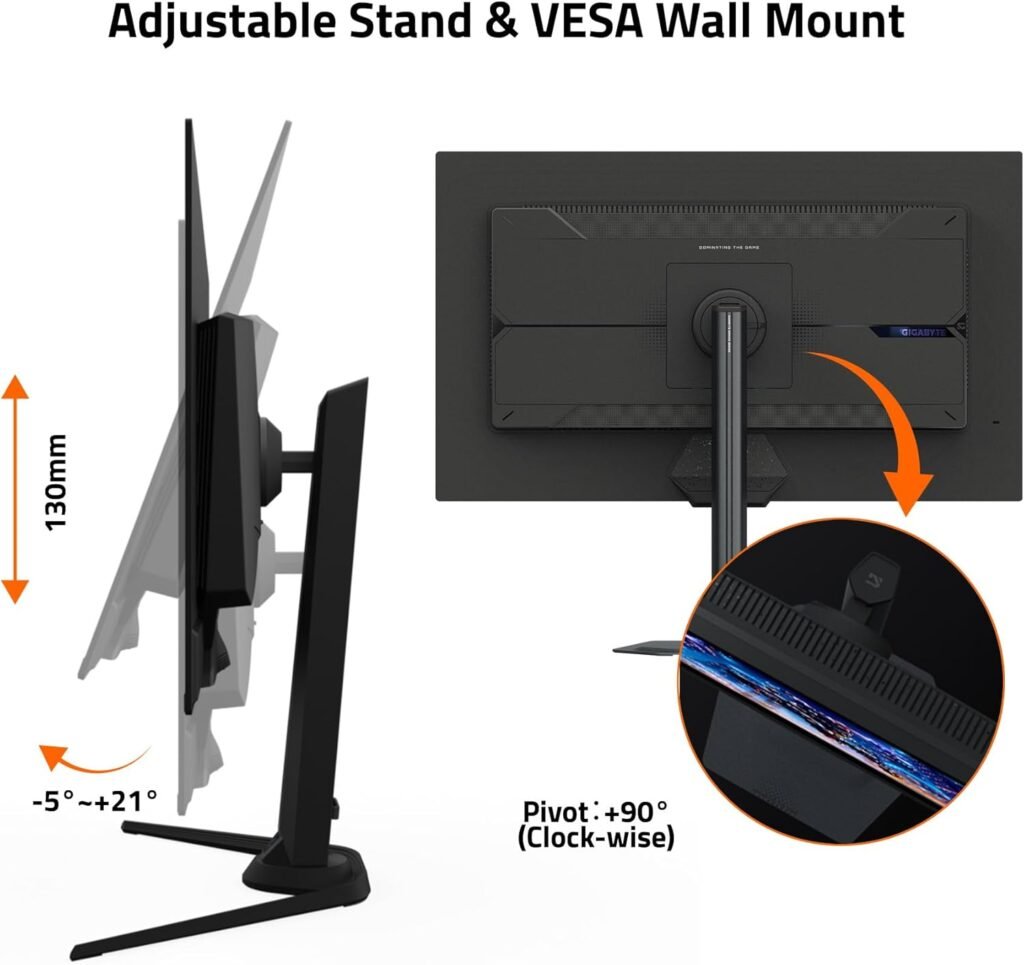
Build quality is good, though slightly more “gamer” than premium office monitors. The stand is functional, but not as refined as high-end productivity displays.
Another detail worth mentioning is how intuitive Gigabyte’s OSD Sidekick software is in daily use. Instead of navigating clunky monitor buttons, you can control brightness, contrast, input switching, and even KVM settings directly from your keyboard and mouse. It sounds small, but in practice, it saves time and makes the whole experience feel more modern and fluid—especially if you’re constantly adjusting your setup throughout the day.
Real-World Performance
This is where the Gigabyte M27Q KVM really shines—it’s a hybrid.
- Office work: QHD resolution is sharp enough for daily productivity, though not as crisp as 4K
- Coding: Plenty of space, and text clarity is good for long sessions
- Creative work: Solid colors, but not ideal for high-end color grading
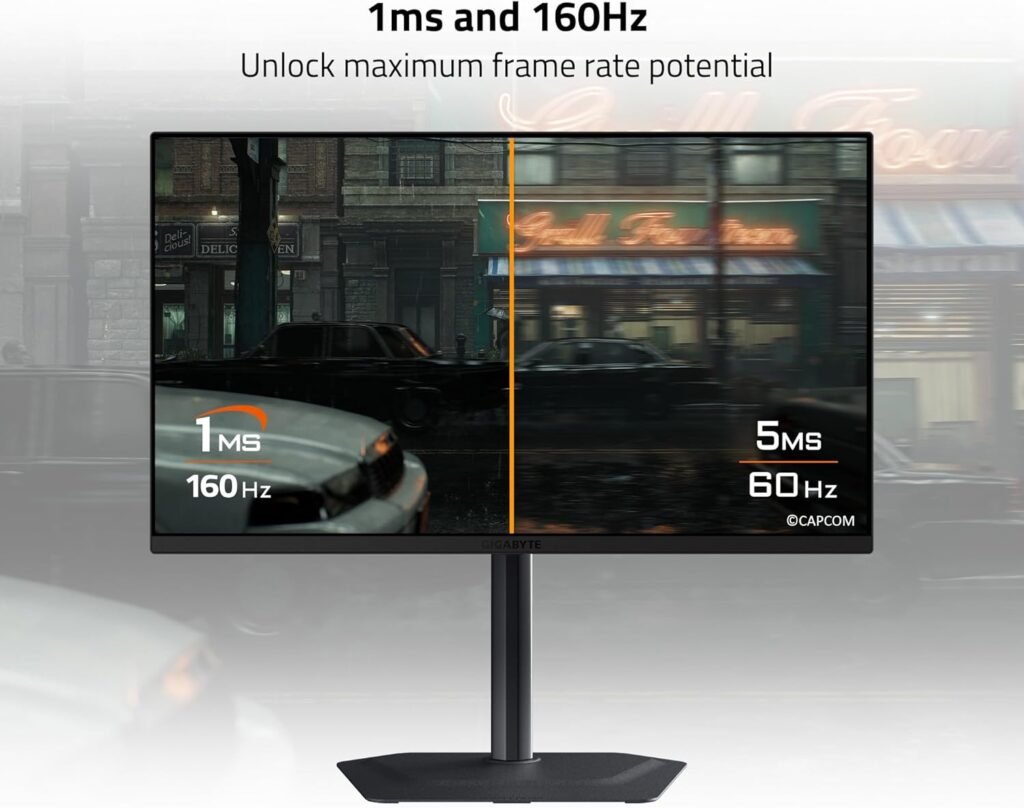
- Gaming: This is the bonus—170Hz refresh rate makes everything smooth
Unlike many productivity monitors, this one doesn’t force you to choose between work and play.
But here’s the honest truth:
- If you’re a hardcore competitive gamer, you might want even faster panels
- If you’re a pure productivity user, you might prefer 4K + better contrast
This monitor sits right in the middle—and that’s its strength.
One thing I really appreciated during extended use is how practical the Gigabyte M27Q KVM feature becomes over time. At first, it feels like a “nice-to-have,” but once you start switching between a work laptop and a personal PC instantly—with the same keyboard and mouse—it completely changes your workflow. There’s no mental friction, no re-plugging cables, and no desk clutter. For anyone working remotely or studying while managing multiple systems, this feature alone can justify choosing the Gigabyte M27Q KVM over more “premium” monitors.
Another underrated aspect is the balance this monitor strikes between performance and affordability. You’re getting features that are usually split across two categories—productivity monitors (USB-C, clean setup) and gaming monitors (high refresh rate)—combined into one device. Sure, it doesn’t have the deep contrast of IPS Black or the sharpness of 4K panels, but in real-world use, it delivers a smooth, efficient, and enjoyable experience that fits most people’s daily needs without overspending.
Who Should Buy This?
The Gigabyte M27Q KVM is perfect for:
- People using two computers at once (work + personal)
- Programmers and multitaskers
- Users who want one setup for both work and gaming
- Budget-conscious buyers who still want premium features
Pairing it with a productivity keyboard like the Logitech MX Keys S Review setup creates a clean, powerful workflow that feels effortless day to day.
The Gigabyte M27Q KVM also a great choice for students or anyone transitioning into tech-related fields. If you’re learning coding, data analysis, or working remotely, having a monitor that can handle multiple devices while staying smooth and responsive makes a real difference. Instead of investing in separate screens for work and play, the Gigabyte M27Q KVM simplifies everything into one efficient setup.
Pros & Cons
✅ Pros
- Built-in KVM switch (huge productivity boost)
- Smooth 170Hz refresh rate
- Good color accuracy for the price
- USB-C connectivity for cleaner setups
- Excellent value for money
❌ Cons
- Standard IPS contrast (~1000:1)
- Not ideal for professional photo editing
- USB-C charging is limited
- QHD instead of 4K
Final Verdict
The Gigabyte M27Q KVM isn’t trying to be a perfect color-critical monitor—and that’s exactly why it works. It focuses on real-world usability, flexibility, and smart features that actually improve your daily workflow.
If you want a versatile monitor that handles both productivity and gaming, while keeping your setup clean and efficient, this is one of the best value picks in 2026.
Rating: 8.7/10